Reviewing changes
diffle serves your working diff as a browser UI. Point it at a ref and it runs git diff, parses the result, and opens a review pane.
diffle HEAD~1See the CLI reference for the full ref syntax.
The file tree
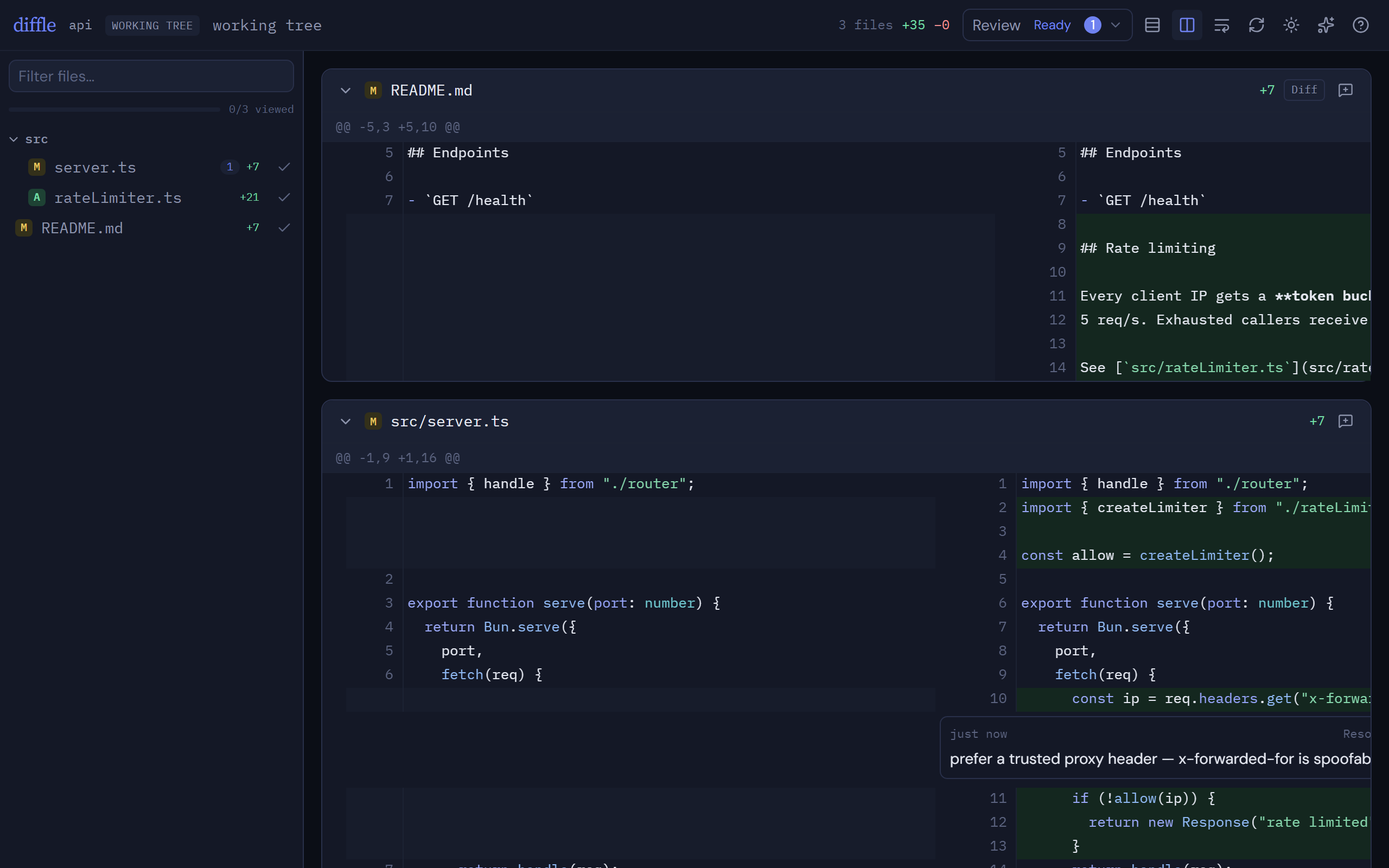
Section titled “The file tree”Every changed file appears in the sidebar tree. Click a file to jump to it. Filter the tree by typing in the filter box to narrow the list to matching paths — useful in large diffs.
Unified vs side-by-side
Section titled “Unified vs side-by-side”Toggle between unified (one column, +/- markers) and side-by-side (old on the left, new on the right) with the s shortcut. Added and deleted files always render unified — there is no counterpart column to show.
Long lines can be hard to scan side-by-side; turn on line wrapping to fold them into the column width instead of scrolling horizontally.
Single-file vs all-files view
Section titled “Single-file vs all-files view”By default diffle shows one file at a time. Switch to all-files view with o to scroll the entire diff continuously. Use single-file view to focus; use all-files to skim the whole change.
Marking files viewed
Section titled “Marking files viewed”Mark the current file viewed with v (or the checkbox in its header). The viewed progress indicator tracks how many files you’ve cleared, so you can work through a large diff without losing your place.
Live refresh
Section titled “Live refresh”diffle re-runs git diff on demand — press r (or hit Re-run) after you change the code to pull the latest diff into the same session. Your inline comments are preserved across re-runs.
Large files and markdown
Section titled “Large files and markdown”Files above the size threshold are gated behind a load prompt so a huge diff doesn’t stall the pane — click to load an individual file when you want it.
Markdown files show their diff like any other file, plus a per-file Preview toggle that renders the markdown so you can see the formatted result alongside the changes.
Keyboard shortcuts
Section titled “Keyboard shortcuts”| key | action |
|---|---|
j / k |
next / previous file |
v |
toggle viewed on the current file |
s |
unified ↔ side-by-side |
o |
single-file ↔ all-files view |
t |
toggle light / dark |
r |
re-run the diff |
c |
preview review feedback |
? |
shortcut overlay |
Esc |
close dialogs |
Next steps
Section titled “Next steps”- Leave feedback on the diff with Inline comments.
- Return your comments to an agent with Agent feedback.